
Message authoring
Rich messages are interactive blocks inside chat — buttons, dropdowns, input forms, cards, sliders, and more. Agents insert them with shortcodes in the message editor; visitors see rendered UI, not raw code.
Custom static rich messages (HTML) are managed under Settings → General → Rich messages. Built-in shortcodes are documented below.
How it works
- •
Create and send
In the admin Conversations editor, paste a shortcode into the message field. Set parameters (
title,options,success, etc.) and send.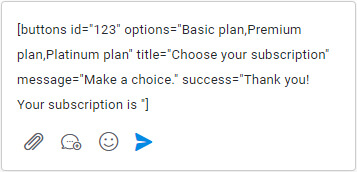
- •
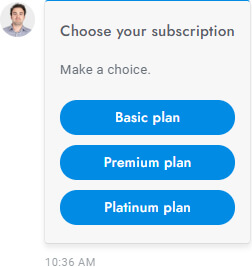
Message is displayed
The widget renders the rich message. The visitor selects an option or fills the form.
- •
Response is submitted
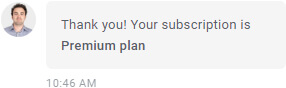
After submit, the success text is shown and the visitor’s choice or input is appended. Form data is stored on the message payload and can fire the rich-message webhook.
Example: buttons shortcode
[buttons id="123" options="Basic plan,Premium plan,Platinum plan" title="Choose your subscription" message="Make a choice." success="Thank you! Your subscription is "]Built-in shortcodes
| Name | Shortcode | Description |
|---|---|---|
| Card | [card image="URL" header="TITLE" description="Lorem ipsum dolor sit amet" link="URL" link-text="Purchase" extra="$599" target="_blank"] | Call-to-action card with image, title, description, link, and extras |
| Slider | [slider image-1="URL" header-1="TITLE" description-1="…" link-1="URL" link-text-1="Purchase" extra-1="$599" image-2="URL" … target="_blank"] | Slider of cards — up to 10 slides (image-N, header-N, …) |
| Slider images | [slider-images images="URL,URL,URL"] | Image-only slider |
| Chips | [chips options="A,B,C"] | Horizontal chip buttons |
| Buttons | [buttons options="A,B,C"] | Vertical button list |
| Select | [select options="A,B,C"] | Dropdown |
| Inputs | [inputs values="A,B,C" button="Send now"] | Labeled text fields + submit |
[email name="true" last-name="true" phone="true" phone-required="false" placeholder=""] | Email/phone capture; follow-up defaults apply. Use required-messaging-apps="true" to require email/phone on WhatsApp, Messenger, etc. Merge fields supported | |
| Timetable | [timetable] | Office hours table — uses Scheduled office hours |
| Articles | [articles link="https://example.com/articles"] | Searchable articles list; link is fallback text on channels that cannot render the full UI |
| List | [list values="A,B,- C,- D,E" numeric="true"] | Text list; prefix - for nested items |
| List (titled) | [list values="A:X,B:Y,C:Z"] | List with title:value pairs |
| List image | [list-image values="URL:A,URL:B,URL:C"] | List with thumbnails |
| Table | [table header="A,B,C" values="A:B:C,A:B:C,A:B:C"] | Simple table |
| Button | [button link="https://example.com" name="Click here" target="_blank" style="link"] | Single link or #article-ID to open an article. style="link" uses text link styling |
| Video | [video type="youtube" id="VIDEO_ID" height="350"] | YouTube or Vimeo (type="youtube" | "vimeo") |
| Image | [image url="https://example.com/image.png"] | Standalone image |
| Share | [share fb="URL" tw="URL" li="URL" pi="URL" wa="URL"] | Social share buttons |
Global parameters
Most interactive shortcodes accept:
| Parameter | Description |
|---|---|
id="123" | Rich message ID — used in payload/JSON storage |
title="ABC" | Title shown at the top |
message="ABC" | Description under the title |
success="ABC" | Shown after submit; user input is appended to this text |
settings="ABC" | Optional extra metadata |
Combine globals with type-specific attributes (for example options, values, image).
Special characters
If your text contains ,, :, or ", escape them with \:
options="Option A\, with comma"Show a rich message on chat start
Paste a shortcode into the Welcome message Message field (for example a [buttons …] list). It renders when the welcome message is sent on first visit.
You can also use shortcodes in Follow-up message, Offline message, and other message settings that support the full editor.
Translations
To translate rich message strings:
- Keep the original shortcode text in English in the message you send.
- Add matching English phrases and translations under Settings → Translations → Front end.
Translated title, message, success, and option labels apply per visitor language.
Custom rich messages
Settings → General → Rich messages — repeater with Name and Content.
- Reference custom messages as
[your-name]in chat (same syntax as built-ins). - Custom messages are static HTML (no built-in submit/button handlers like
[buttons]). - Useful for branded layouts, embeds, or instructions.
HTML snippets for custom content
| HTML | Result |
|---|---|
<a href="https://www.example.com" target="_blank" class="sb-rich-btn sb-btn">Click here</a> | Button-styled link |
<a href="https://www.example.com" target="_blank" class="sb-rich-btn sb-btn-text">Click here</a> | Text link |
<div class="sb-image"><img src="https://via.placeholder.com/1500x600" class="sb-image" /></div> | Zoomable image |